GET STARTED

Three steps to send files.

Here is a straightforward guide for file sharing between nearby Android devices.

STEP 01

Join the same local connection.

Turn on Wi-Fi or a supported hotspot connection and make sure the sending and receiving devices can discover one another. Open Circle Share on both.

For Android TV, use the Phone to TV feature or TV interface according to your device setup.
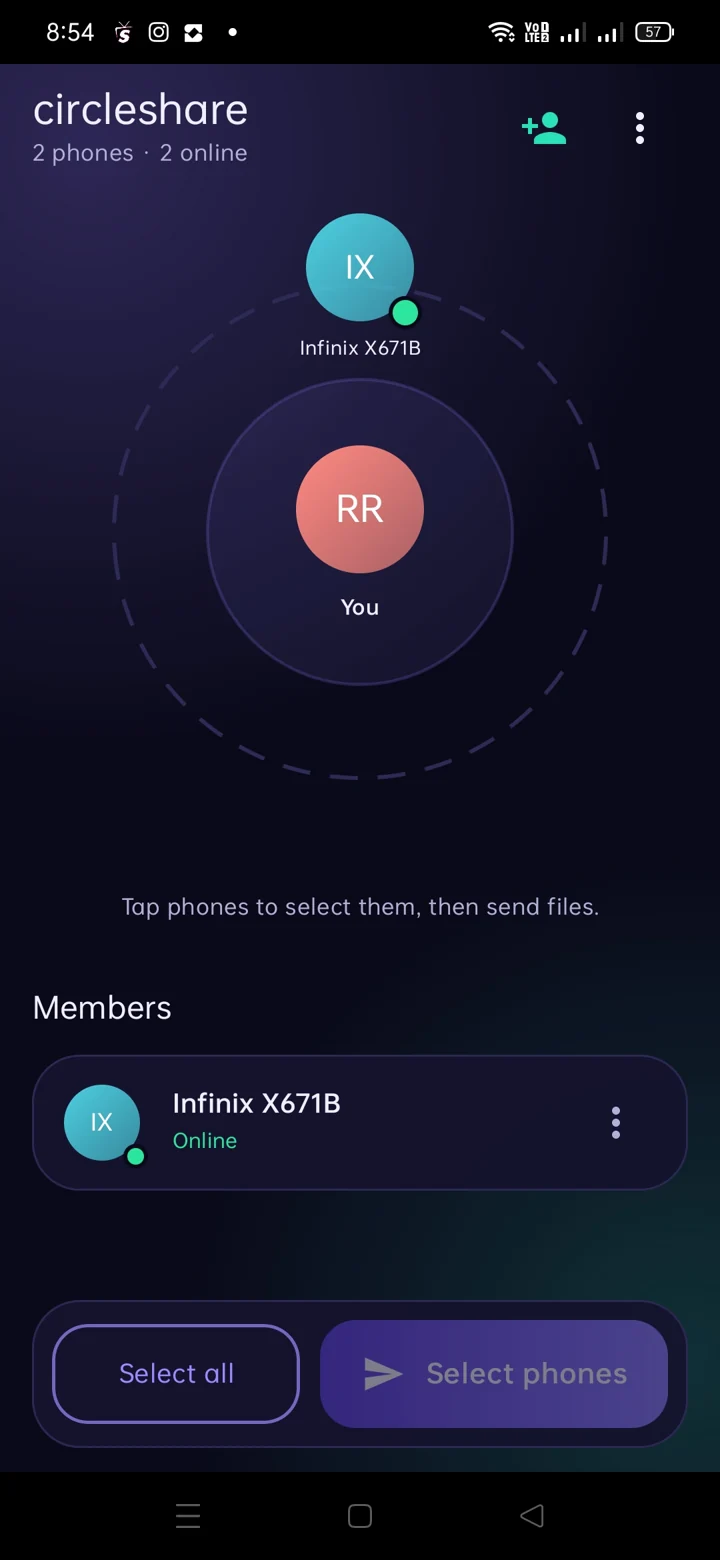
Circle Share Android mobile home displaying nearby devices around a circle
STEP 02

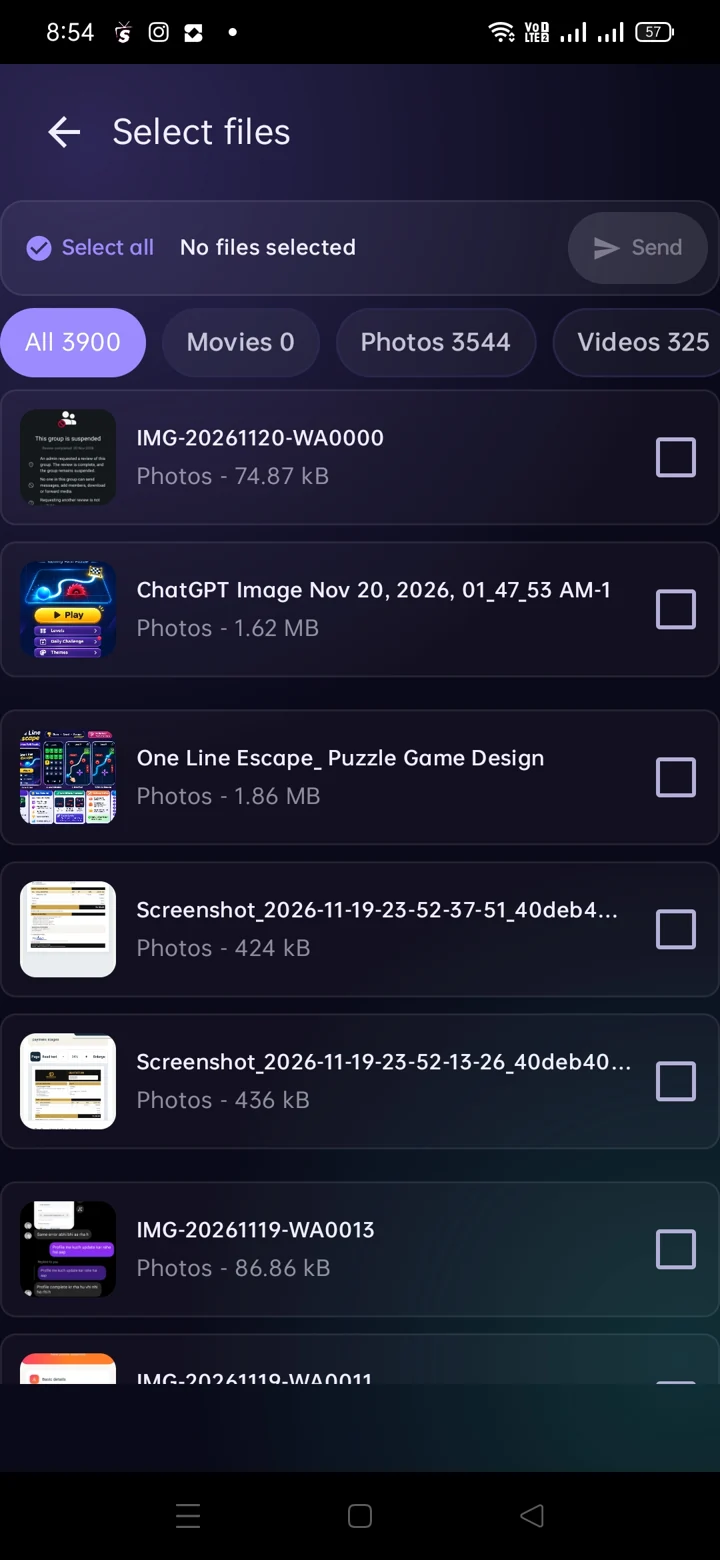
Select your files and recipient.

Open the file picker, browse the available categories and choose the files you wish to share. Then select an available nearby device.

Only share content you are permitted to distribute.

Circle Share Android file picker with multiple file categories
STEP 03

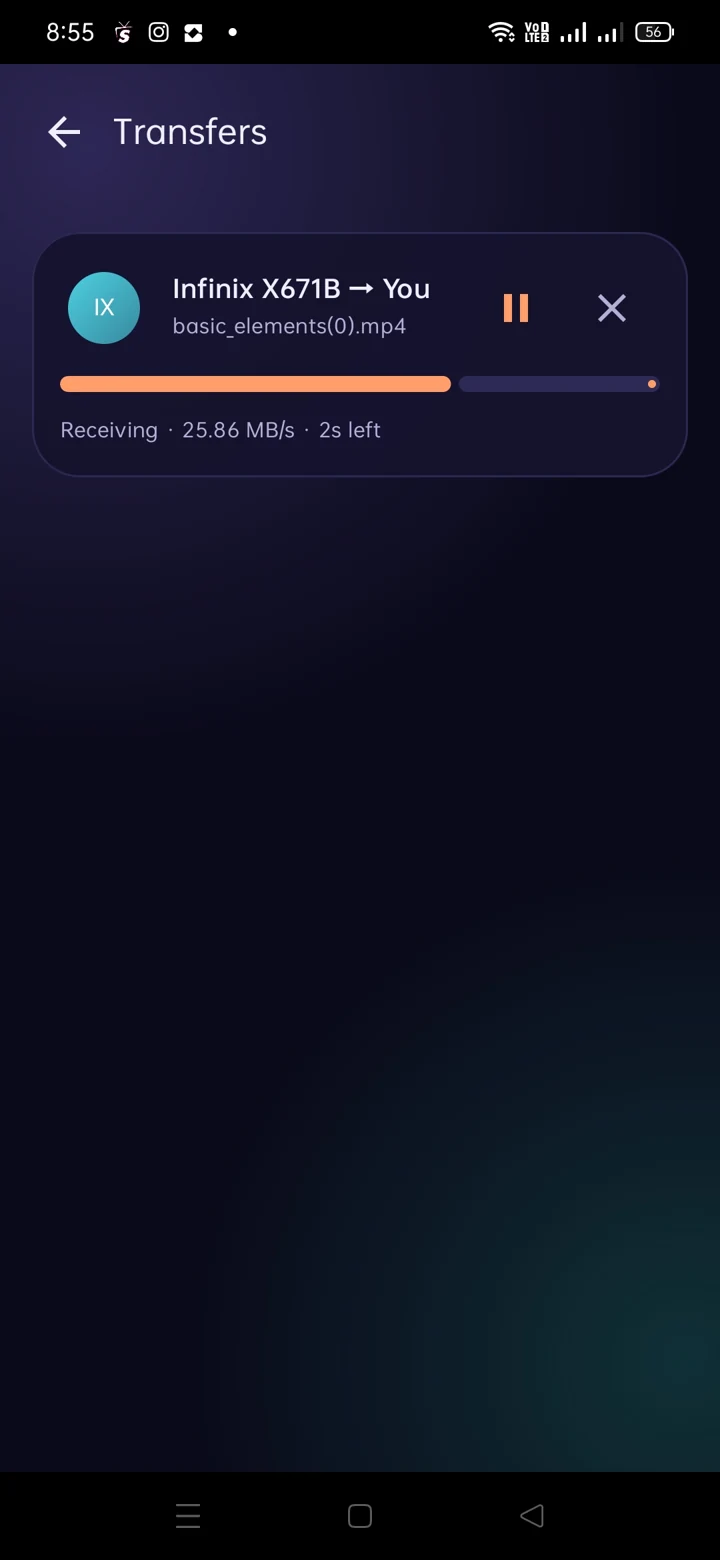
Approve, receive and track.

The receiving device may ask for approval depending on its settings. Follow progress from the Transfers screen and check the saved files on the receiving device.

For safer sharing, choose approval rather than automatic receiving when you do not recognize a device.

Circle Share transfer progress screen

Internet vs local connection

File transmission is designed to run over the local Wi-Fi or hotspot connection. Internet access may still be used separately by app services such as advertising, Play Store updates or support links.